Creating From Scratch
In this section, you will learn how to create a dataset from scratch.
When to use
-
When you want full control over how the dataset is structured.
-
When there is no existing annotation or dataset to import.
-
When starting a new AI use case or testing a fresh hypothesis.
-
When you want to add only selected layers manually, with clear versioning.
Why use it
Creating a dataset from scratch gives you the flexibility to include only what’s necessary.
It allows you to custom-curate your test environment with specific layers, folders, and metadata. This method is ideal for precision testing or for bootstrapping brand-new validation datasets.
What’s Next?
After you prepare your validation dataset, you must commit the dataset version to proceed.
Once a dataset is committed, you can proceed to select an AI model to evaluate against your dataset.
You cannot change or add layers after the dataset is committed.
To create a dataset from scratch, do the following:
-
Log in to the platform.
-
Click the AI module, and then click the AI Sandbox sub-module.
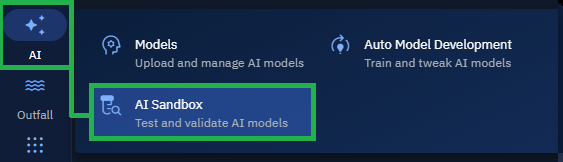
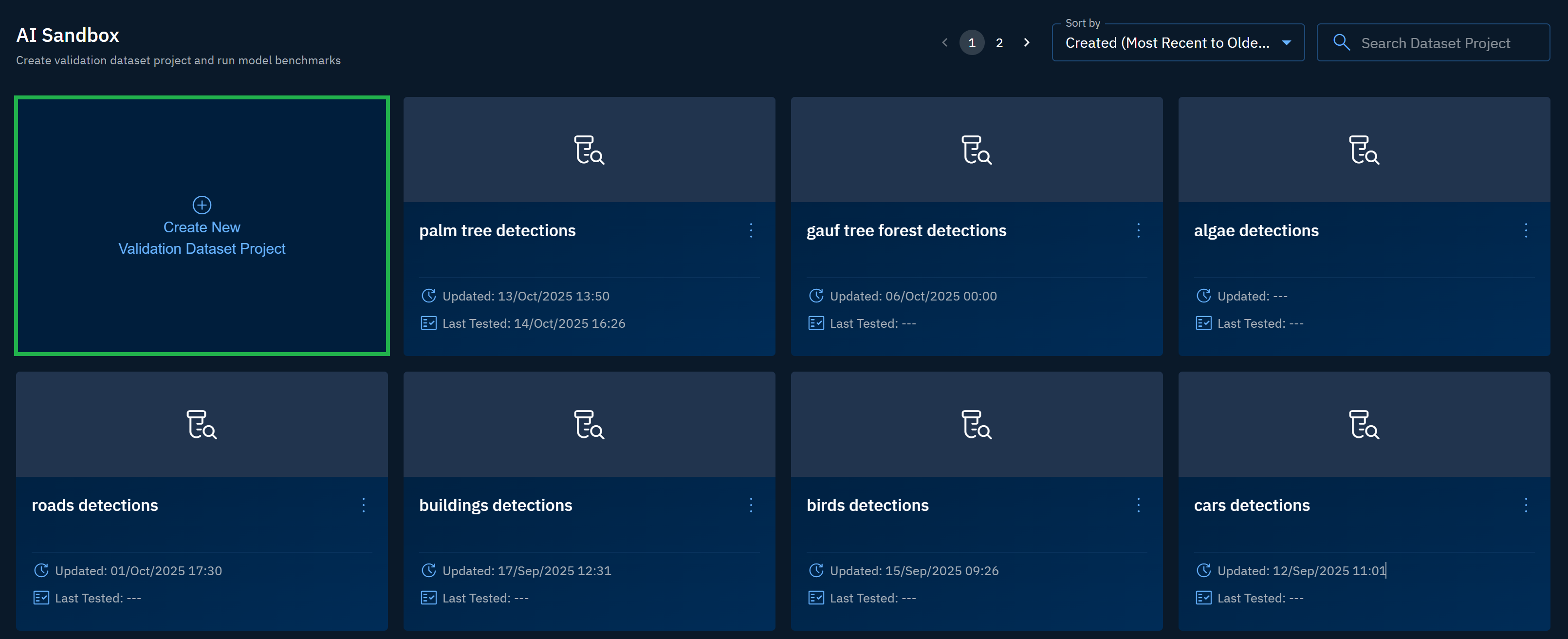
The AI Sandbox Dashboard page is displayed.
-
In the AI Sandbox Dashboard page, click the Create New Validation Dataset Project tile.
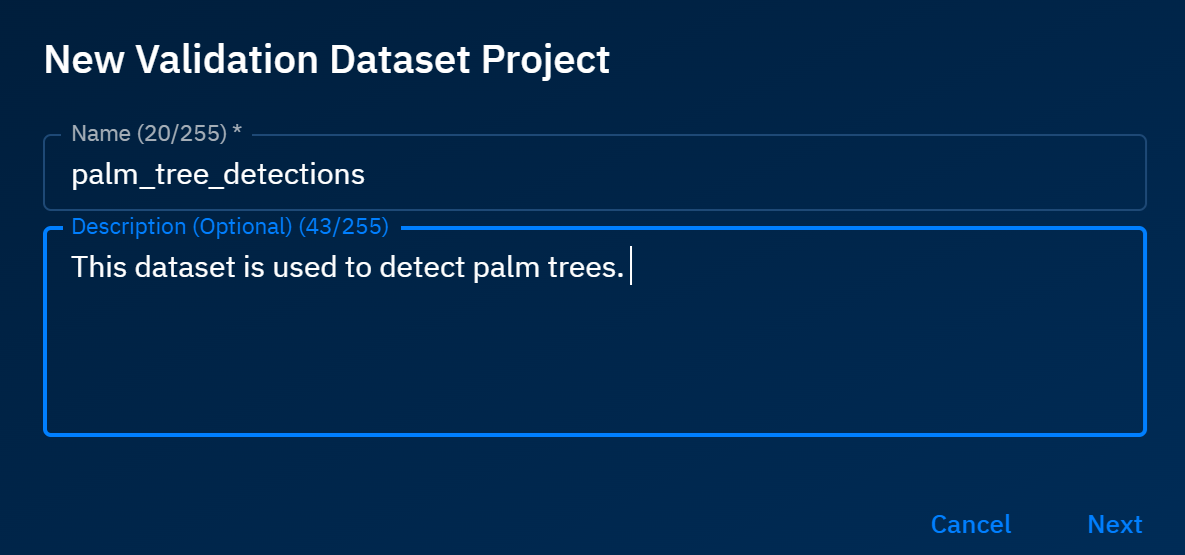
The New Validation Dataset Project dialog box is displayed.
-
The New Validation Dataset Project dialog box, type the dataset name and description in the Name field and Description field, and then click the Next button.
The New Validation Dataset Project dialog box is displayed.
-
In the New Validation Dataset Project dialog box, select the Start From Scratch option and then click the Create button.
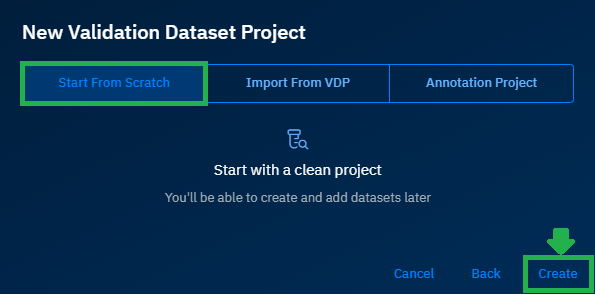
A new dataset page is successfully created and displayed.
-
In the newly created dataset page, click the ➕ icon to create Version 1 of the dataset.
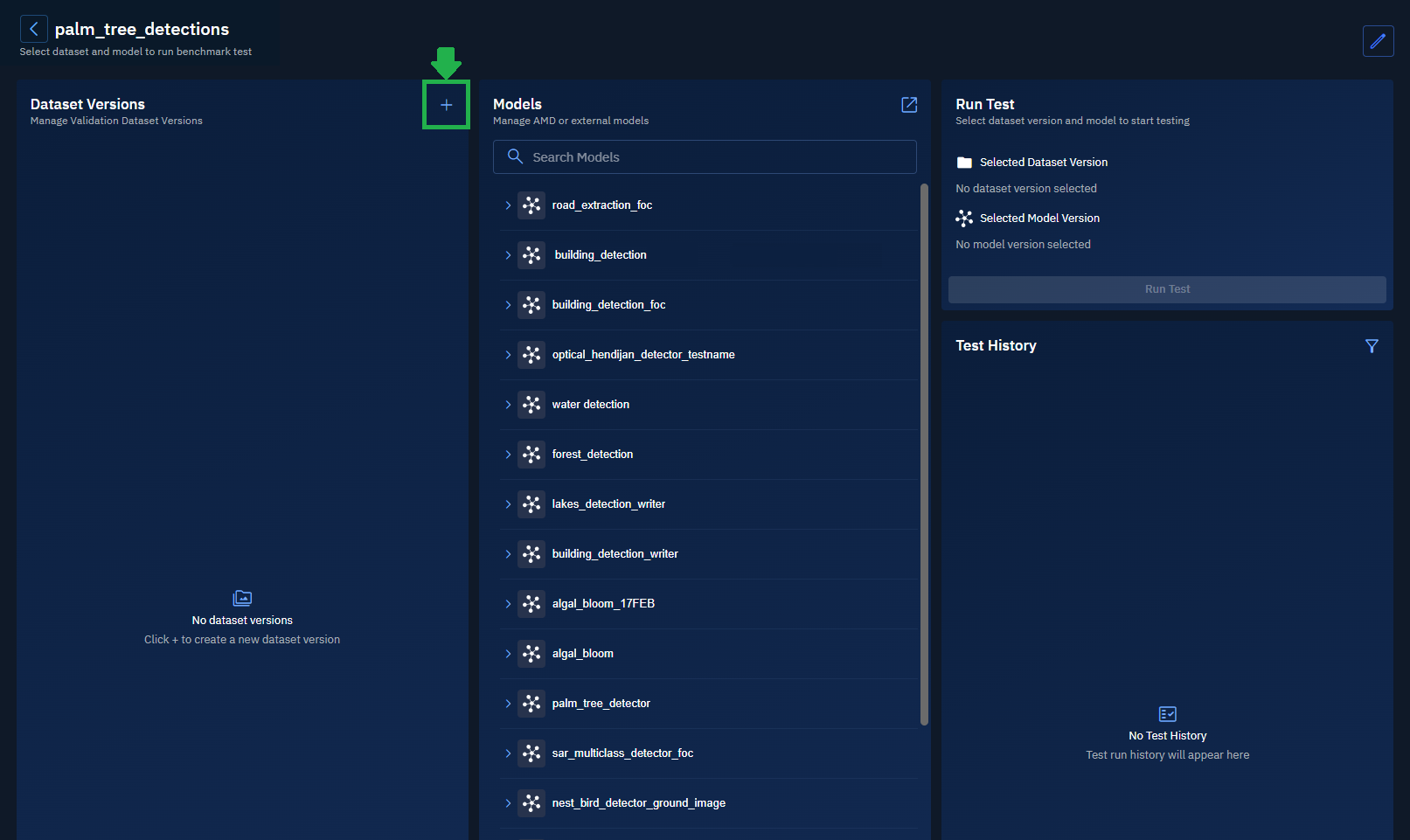
The New Dataset Version dialog box is displayed.
-
In the New Dataset Version dialog box, view the dataset version name in the Version field, type description in the Description field, and then click the Next button.
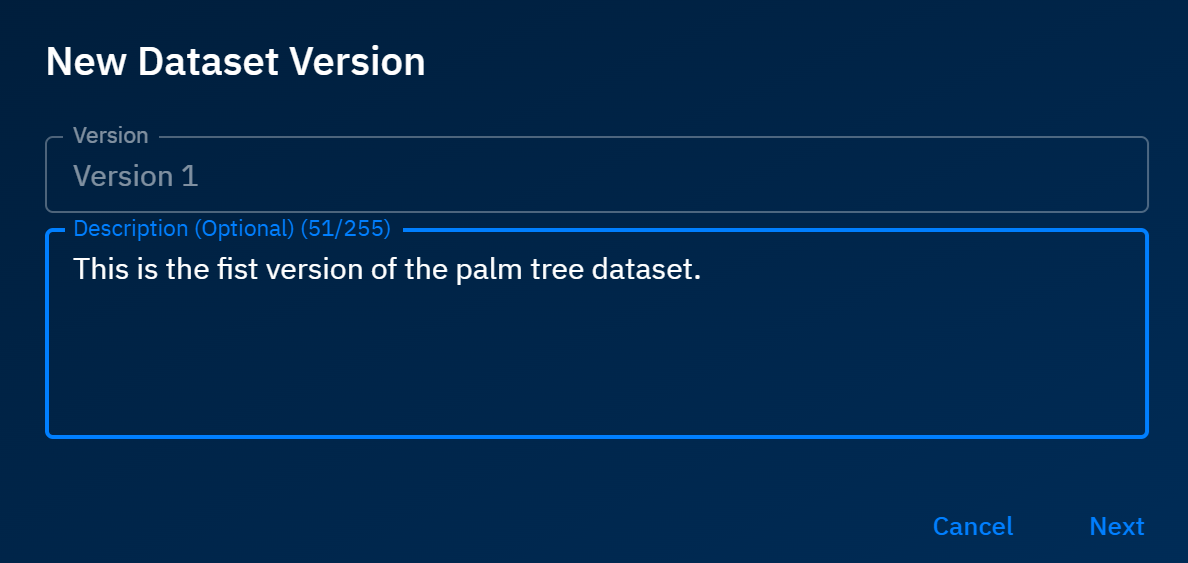
The New Dataset Version dialog box is displayed once again.
-
In the New Dataset Version dialog box, click the Create button.
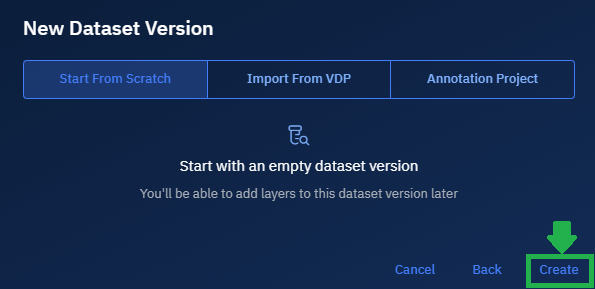
Version 1 of the dataset is successfully created.
-
Do one of the following:
-
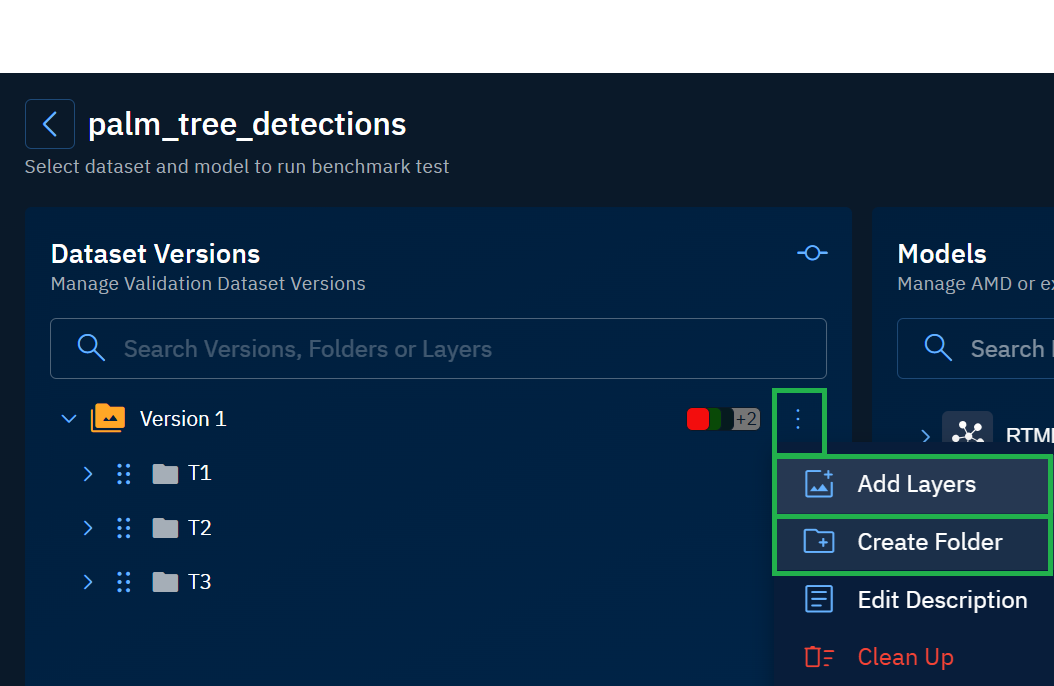
Click the Commit Version icon to commit Version 1 of the VDP.
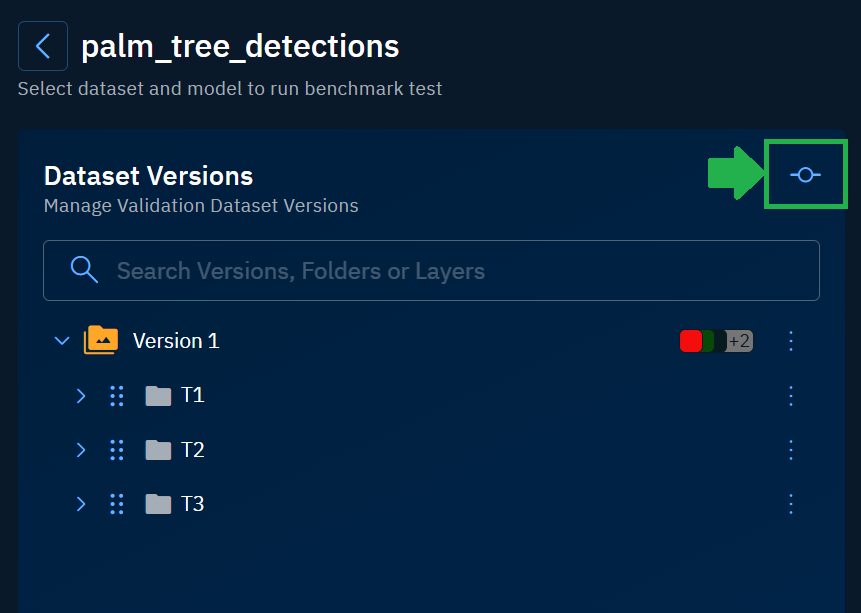
You cannot add layers or create folder after the dataset is committed.
OR
-
Click the More Options menu to select the Add Layers option or Create Folder option to add layers or create a new folder in Version 1.
For more information, see the chapter Managing a Dataset Project.