Overview
With the Annotation Project, you can visually inspect and add labels or descriptive tags to geospatial data such as satellite, aerial, or drone images to identify or classify features like roads, buildings, parks, forests, lakes, and so on. Clear and precise labelling plays an significant role in identifying patterns, monitoring changes, and conducting detailed analyses of geographical features.
This process enables you to provide context to complex geospatial data thereby converting the data into an easily understandable and analyzable form for both the human and machine. This enables you to transform imagery into actionable insights for better decision-making and analysis.
Using the built-in collaborative framework with the platform, you can manage end-to-end annotation projects. Everything from inspecting visually, identifying and classifying features, adding labels, sending annotation project for review, tracking progress, and approving the project is streamlined in the platform. This maintains the consistency and quality required for spatial accuracy and proper geo-referencing across different users thereby eliminating potential errors in analysis and model training.
Annotation Project Types & Supported File Formats
You can use the platform to create the following types of annotation projects:
- Detections: You can create multiple or single job from an image and manual annotate geospatial data.
Annotation project supports the following satellite imagery vendors and file formats:
| File Format Type | File Formats |
|---|---|
| ZIP/TAR archives | 3dtiles, citygml, BlackSky, Dimap (Pleiades), ICEYE, MAXAR, Sentinel-1, Skysat, STAC, UMBRA, Landsat 8/9 |
| Single-file raster | tif, tiff |
Roles and Responsibilities
Use the following permissions to control who can create, modify, and review annotation projects and jobs in your workspace. Toggle the Annotation switch to enable or disable the entire set of permissions for a user.
| Permission | What it allows the user to do |
|---|---|
| Admin Annotation | Full access to all annotation features, including project creation, job assignment, and review. Use this for team leads or project owners. |
| Create Project | Create new annotation projects and upload images. Ideal for managers or team leads responsible for initiating projects. |
| Modify Project | Edit existing annotation projects—change categories, add or remove members, or adjust project settings. |
| Review Job | Review completed annotation jobs, approve or reject based on quality. This is typically enabled for QA roles. |
| Create Annotation | Annotate images as per assigned jobs—draw bounding boxes, apply labels, and submit jobs for review. Enable this for annotators. |
Annotation Workflow Overview
You must have the appropriate permissions to perform the following tasks or functions.
| Step | Stage | Description | Role Responsible | Output Artifact |
|---|---|---|---|---|
| 1 | Project Setup | Use the Create Project permission to start a new annotation project and upload/select images. | Manager | Annotation Project |
| 2 | Job Assignment | Using Admin Annotation, define and assign annotation jobs to users or teams. | Manager | Assigned Annotation Jobs |
| 3 | Annotation Phase | With Create Annotation permission, annotators label assigned images and submit their work for review. | Annotators | Completed Annotation Jobs |
| 4 | QA Review | With Review Job access, QA Managers review jobs. Approve if quality is met; otherwise, reject for rework. | QA Manager | Approved or Rejected Jobs |
| 5 | Rework (if applicable) | Rejected jobs are reassigned; annotators revise the work and resubmit for another QA pass. | Annotators | Revised Annotation Submission |
Accessing Annotation Project
In this section, you will understand how to access the annotation project.
To access annotation project, do the following:
-
Log in to platform.
-
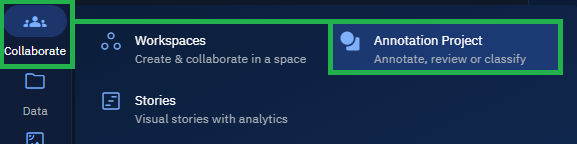
Click the Collaborate module and then proceed to click the Annotation Project sub-module.
The Annotation Projects homepage is displayed.
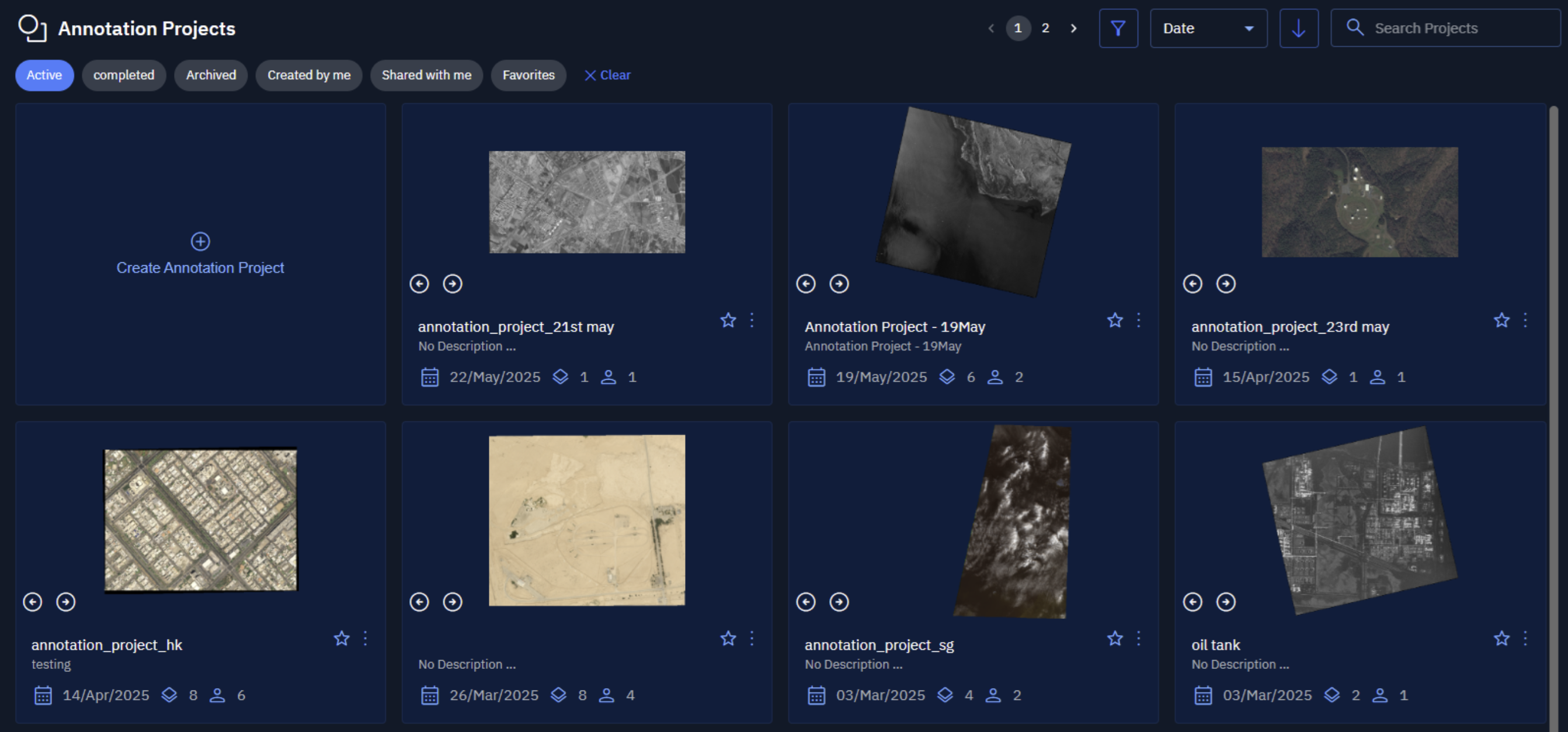
- Search or locate an existing annotation project that you want to explore and click to open it.
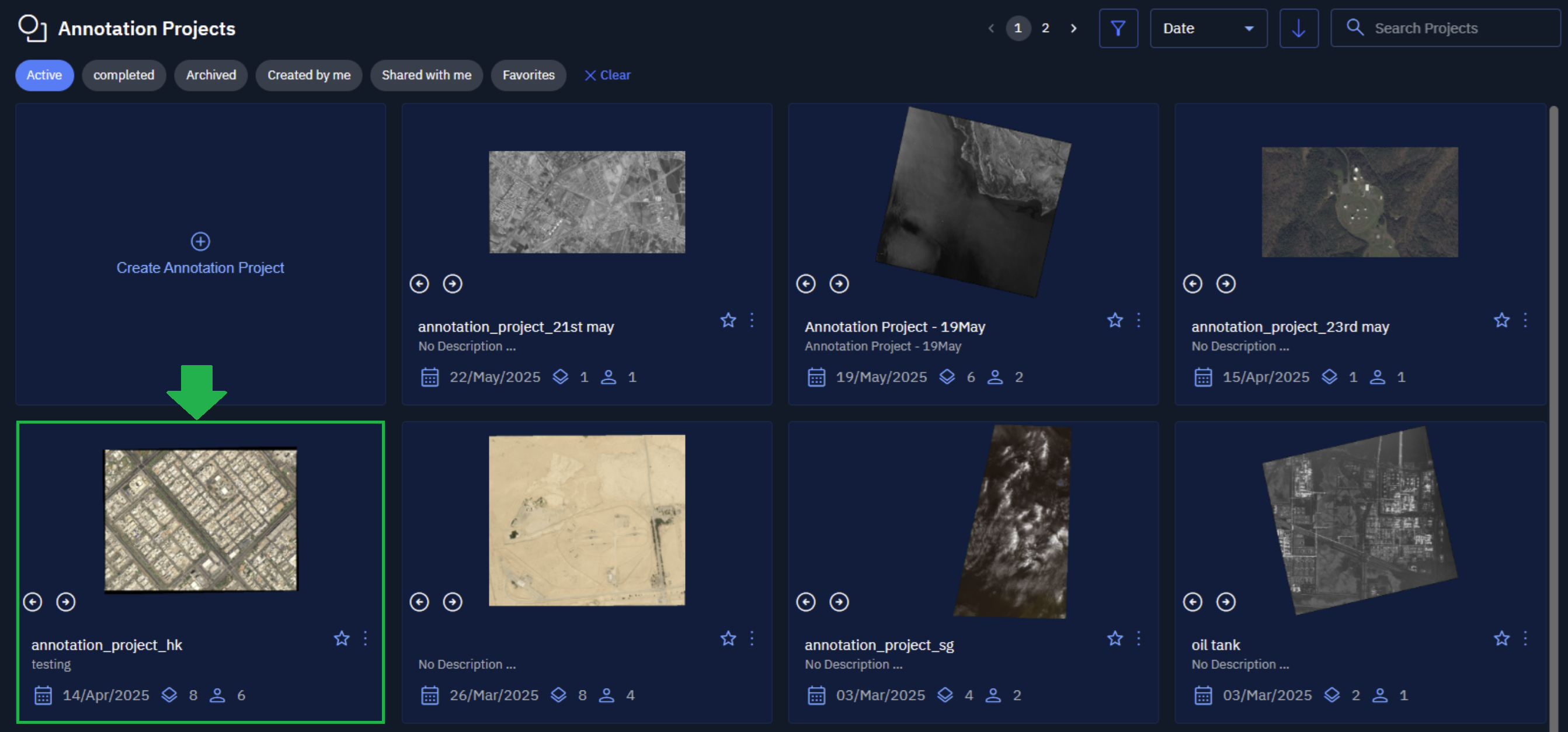
The annotation project is successfully opened.
Navigating an Annotation Project
In this section, we will get to know the different components that make up an annotation project and how you can use these components to take various actions and execute tasks.
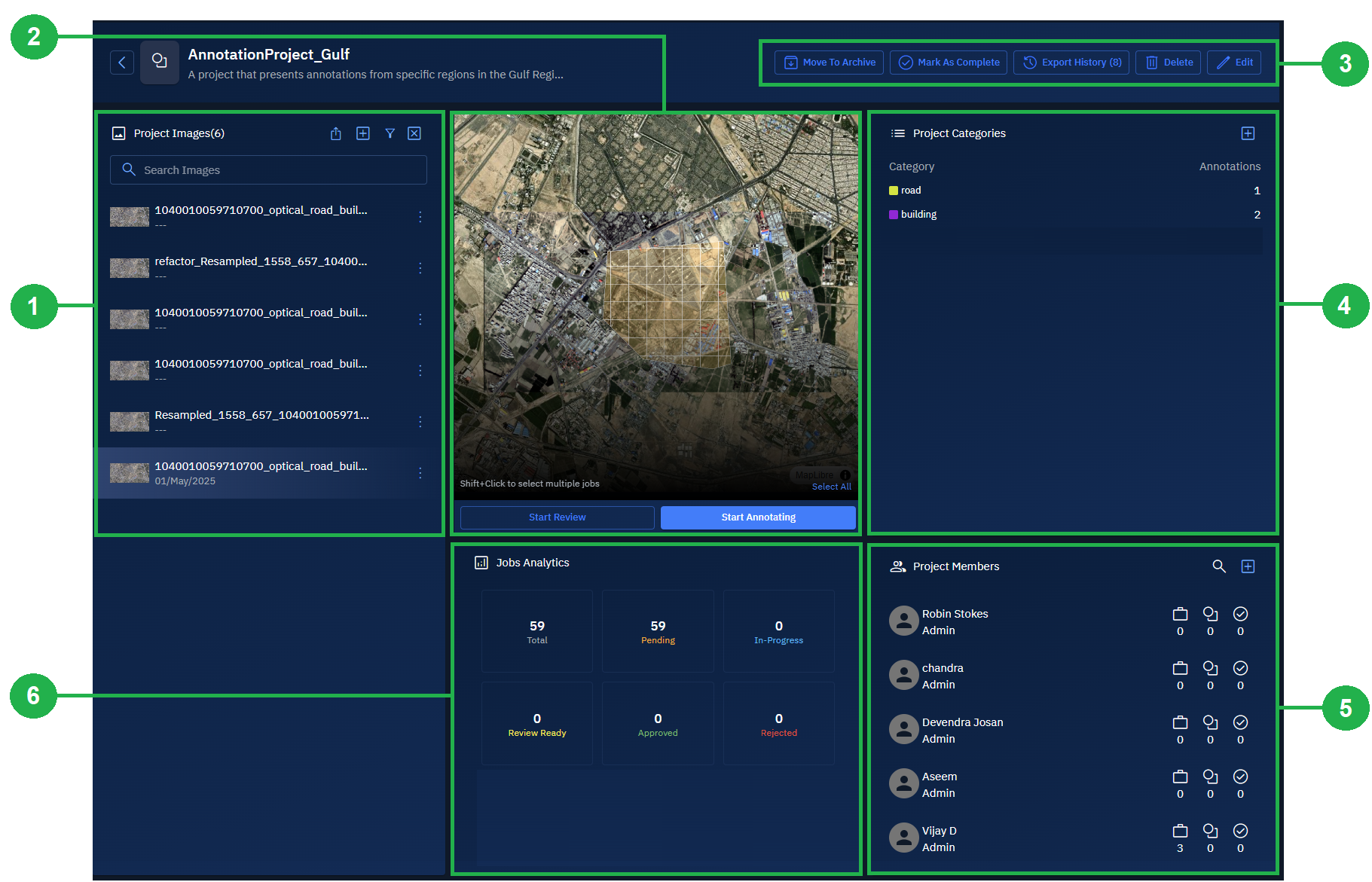
Annotation Project page displays the following:
| Number | Panel Name | What You Can Do Here |
|---|---|---|
| 1 | Project Images panel | Browse all images in your project. Export annotations, add new image layers, or filter images by acquisition date to quickly find what you need. |
| 2 | View Image panel | View individual images and created jobs. Create single or multiple annotation jobs, and assign these jobs to project members or annotate images yourself if you have permission. |
| 3 | Actions menu | Manage your project by archiving it, marking it complete, viewing export history, downloading annotations locally, deleting the project, or editing its details. |
| 4 | Project Categories panel | Organize your work by viewing existing categories and adding new ones to help structure annotations effectively. |
| 5 | Project Members panel | Manage your team. Add new members and track their stats, including pending jobs, total annotation count, and approved annotations to ensure balanced workload and quality. |
| 6 | Job Analytics panel | Monitor progress at a glance. See the total number of jobs and their statuses: pending, in progress, review ready, approved, and rejected—so you can keep your project on track and address bottlenecks quickly. |