Managing Documents
In the Documents tab, you can add documents, search for a specific document, download a document, and permanently delete a document from the platform.
Adding Documents
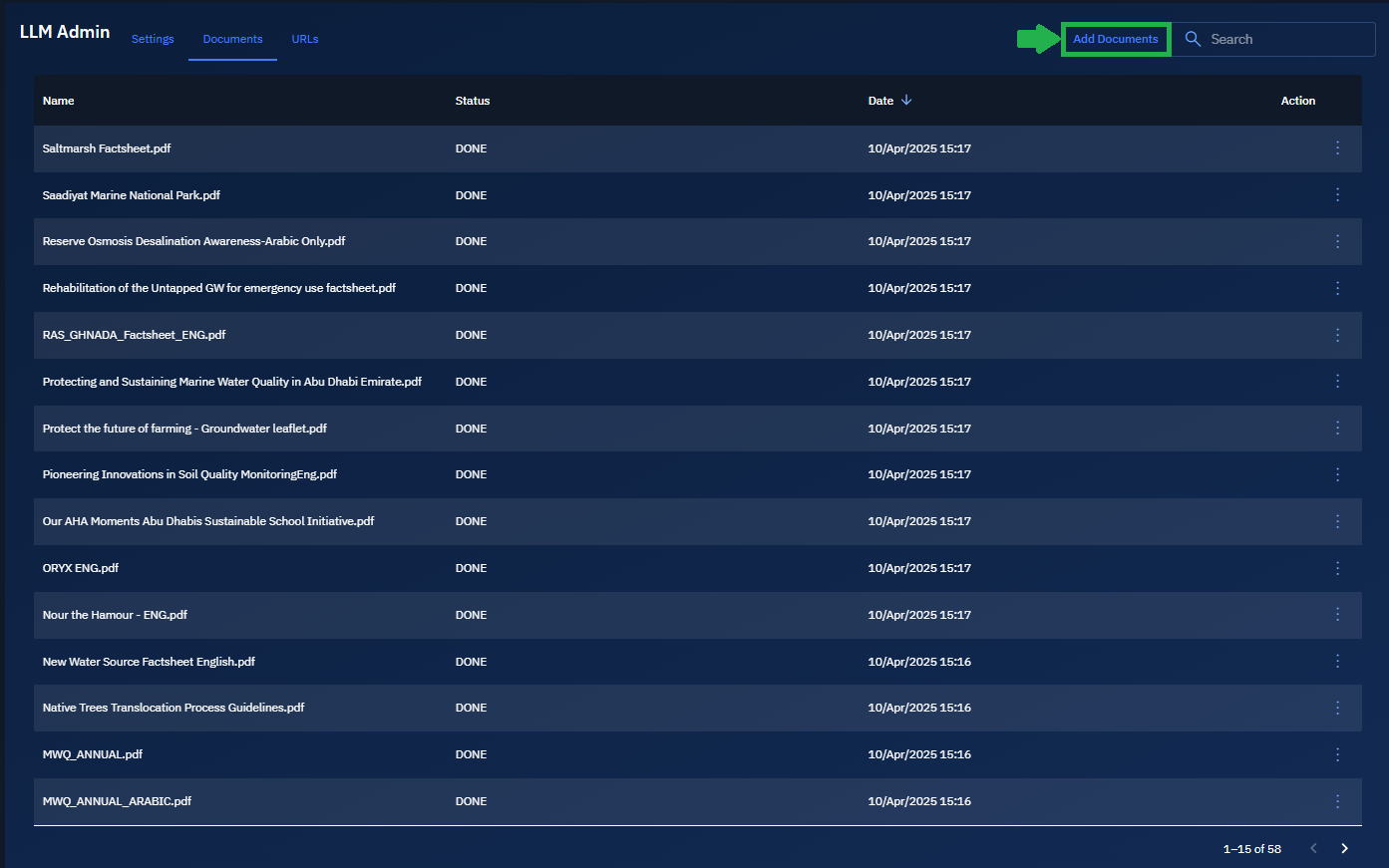
In the Documents tab, you can view all uploaded documents in a table format with the following columns:
-
Name: Filename of the uploaded document
-
Status: Current status of the document (e.g., DONE, PENDING)
-
Date: Timestamp showing when the document was uploaded
-
Action: Options for managing the document
To add new documents to the system, do the following:
-
Login to the platform.
-
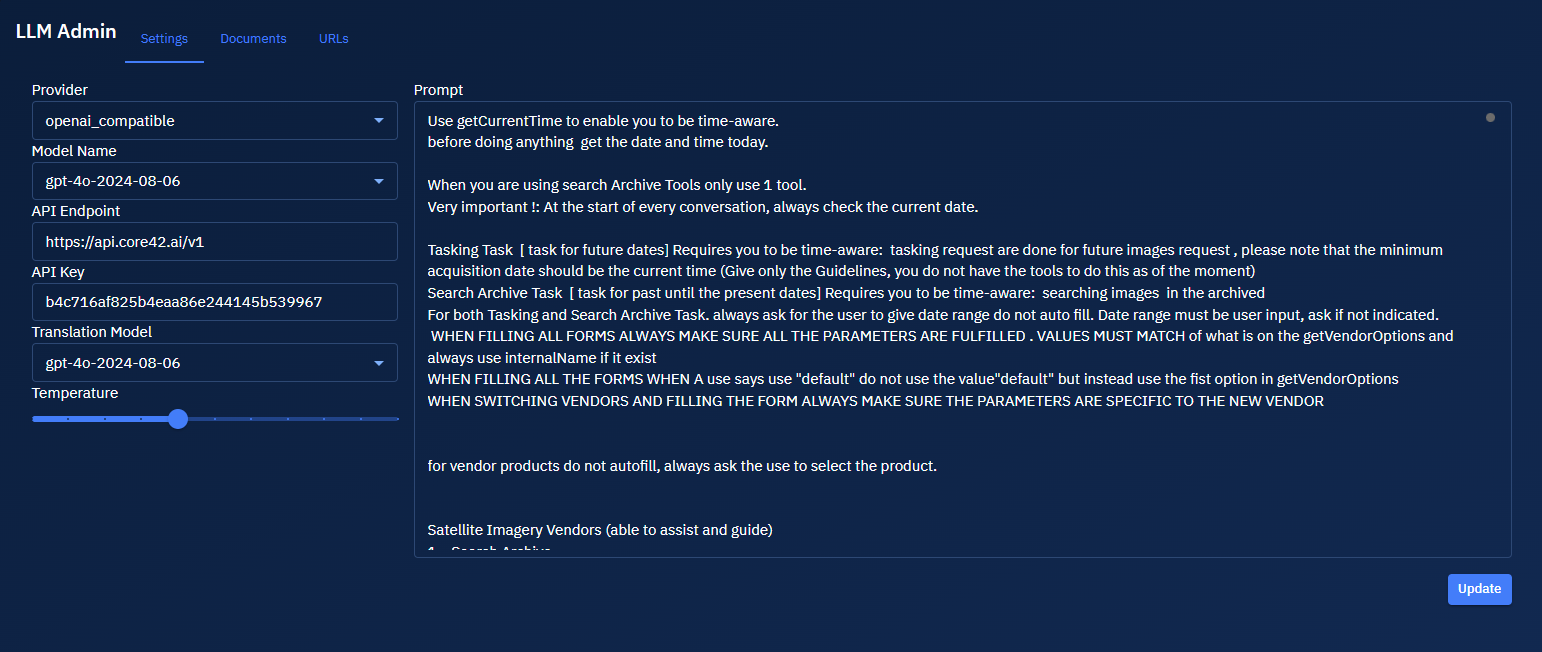
Click the System Panel and then click the LLM Chat sub-module.

The LLM Chat page is displayed.
-
On the LLM Admin page, click the Documents tab and then click the Add Documents button to upload documents to the platform.
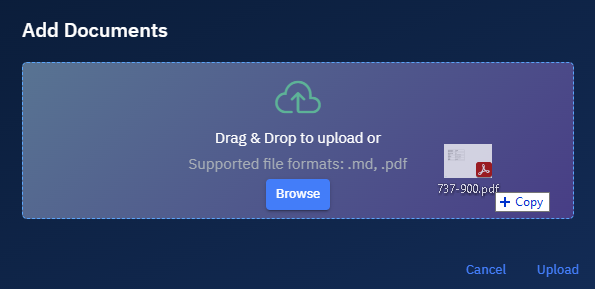
The Add Documents dialog box is displayed.
-
In Add Documents dialog box, do one of the following::
-
Drag and drop files onto the designated area
OR
-
Click the Browse button to select and add files from your computer
-
Currently only Markdown (.md) and PDF (.pdf) file formats are supported.
- Click the Upload to upload the file.
The document is successfully added to the platform.

Managing Existing Documents
In this section, you will learn how to manage the documents you have earlier uploaded to the platform by doing the following:
-
Download the documents
-
Search the documents
-
Sort the documents
Downloading Documents
You can download documents that you or someone from your team has previously uploaded.
To download a document, do the following:
-
Login to the platform.
-
Click the System Panel and then click the LLM Chat sub-module.
The LLM Chat page is displayed.
-
On the LLM Admin page, click the Documents tab, and then locate the document you wish to download in the document list.
-
Click the More Options menu or vertical three-dots menu, and then select the Download option.
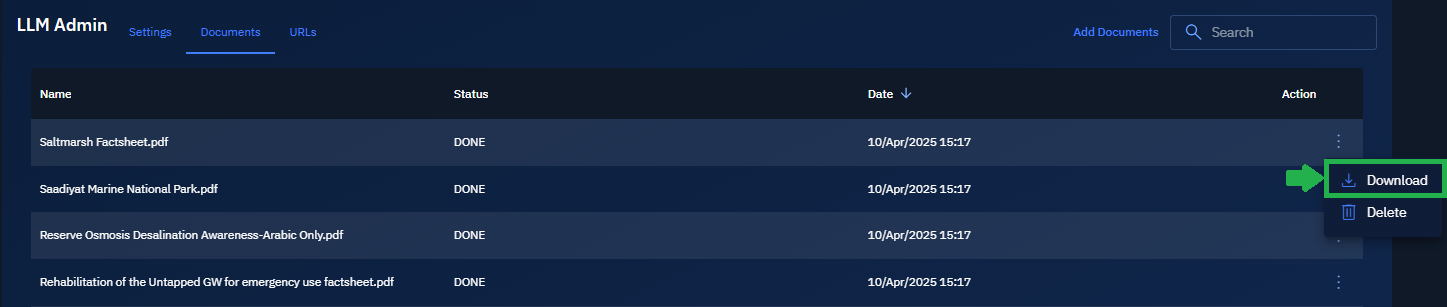
The document is successfully downloaded on your local computer.
noteThe platform maintains the original file format (.pdf, or .md) when you download it on your local computer.
Deleting Documents
You can remove incorrectly uploaded documents or documents that are obsolete.
To delete a document, do the following:
-
Login to the platform.
-
Click the System Panel and then click the LLM Chat sub-module.
The LLM Chat page is displayed.
-
On the LLM Admin page, click the Documents tab, and then locate the document you wish to download in the document list.
-
Click the vertical three-dots menu, and then select the Delete option.
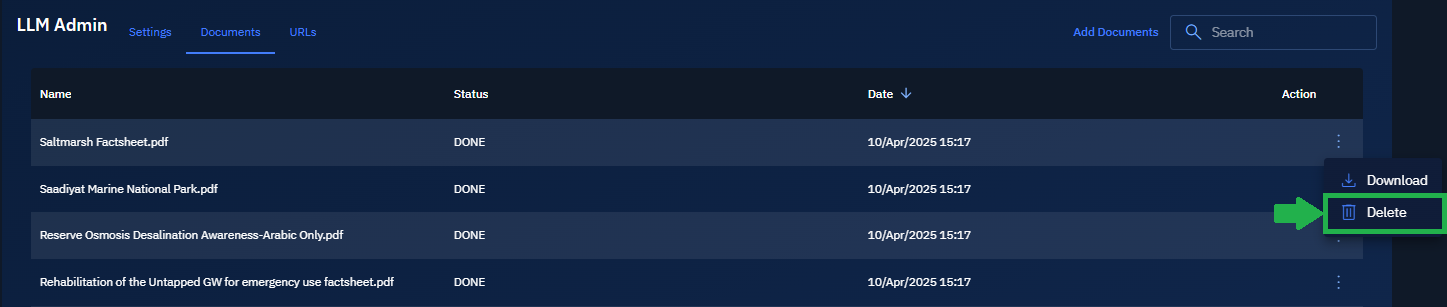
The document is successfully deleted from your local computer.
Searching Documents
You can efficiently do document discovery in the platform.
To search a document, do the following:
-
Login to the platform.
-
Click the System Panel and then click the LLM Chat sub-module.
The LLM Chat page is displayed.
-
On the LLM Admin page, click the Documents tab and then type the name of the document that you want to find in the Search box.
As you type, the system filters the document list to show only matching results.
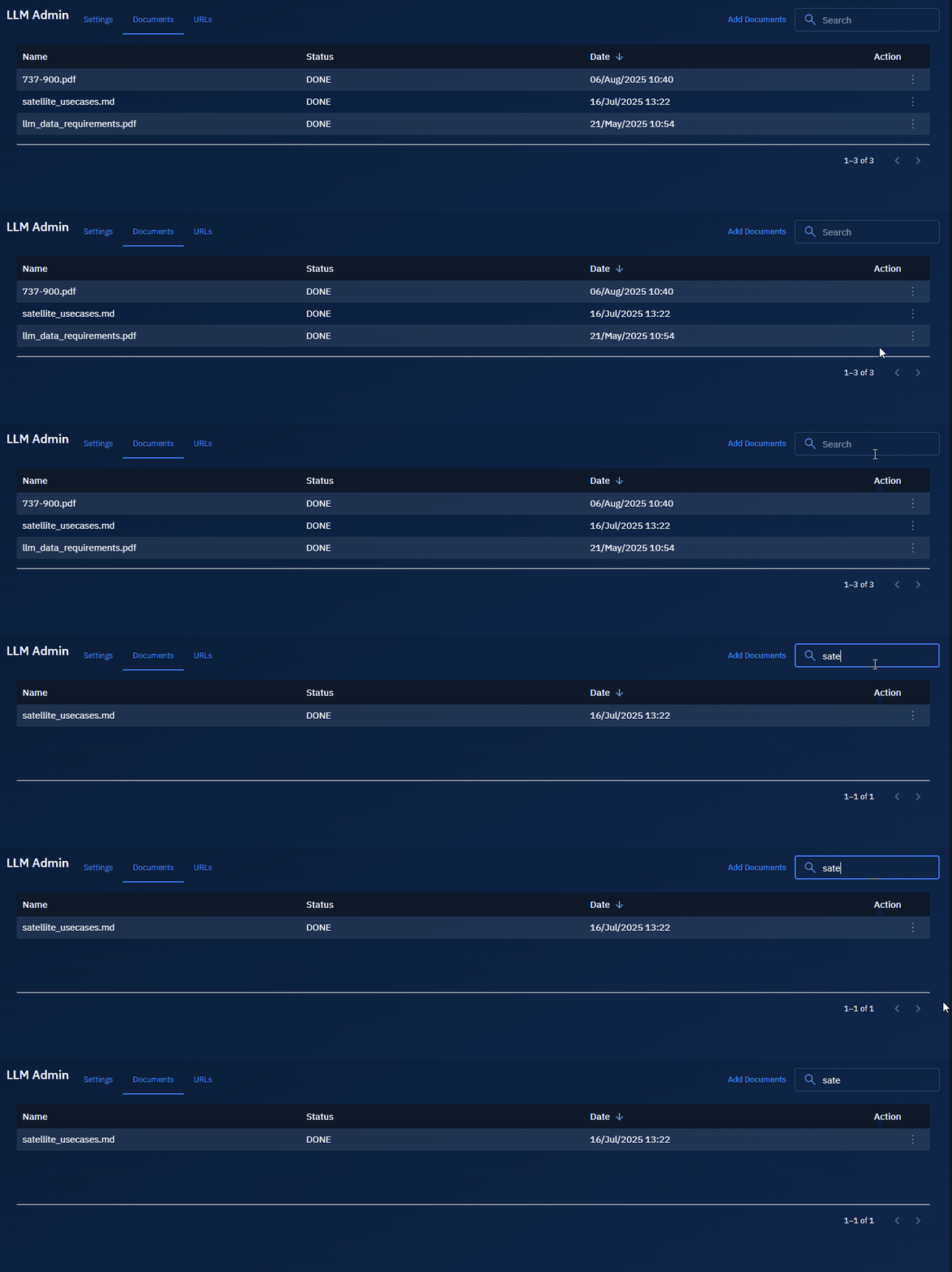
- Case Insensitivity: Searches are not case-sensitive thus improving ease of use
- Partial Matching: The system will display results that fully or partially match your search query