External App Integration
Overview
Use the External App Integration APIs to connect your application to the gIQ Marketplace.
This guide is for third-party developers who want to integrate their application with gIQ, allow users to launch it from the Marketplace, run a task and upload the output file back to gIQ.
What you can do with this integration
With the External App Integration APIs, your application can:
Authenticate and access user context
-
Use an identity token provided by gIQ
→ Understand authentication and identity tokens -
Renew an identity token for long-running sessions
→ Renew identity tokens using the API Reference -
Retrieve user details associated with the token
→ Retrieve user details using the API Reference
Execute and manage operations
-
Create an operation to initiate processing
→ Create operations using the API Reference -
Check the status of an operation
→ Check operation status using the API Reference
Upload and return results
- Upload the result of the operation back to gIQ
→ Upload files using the API Reference
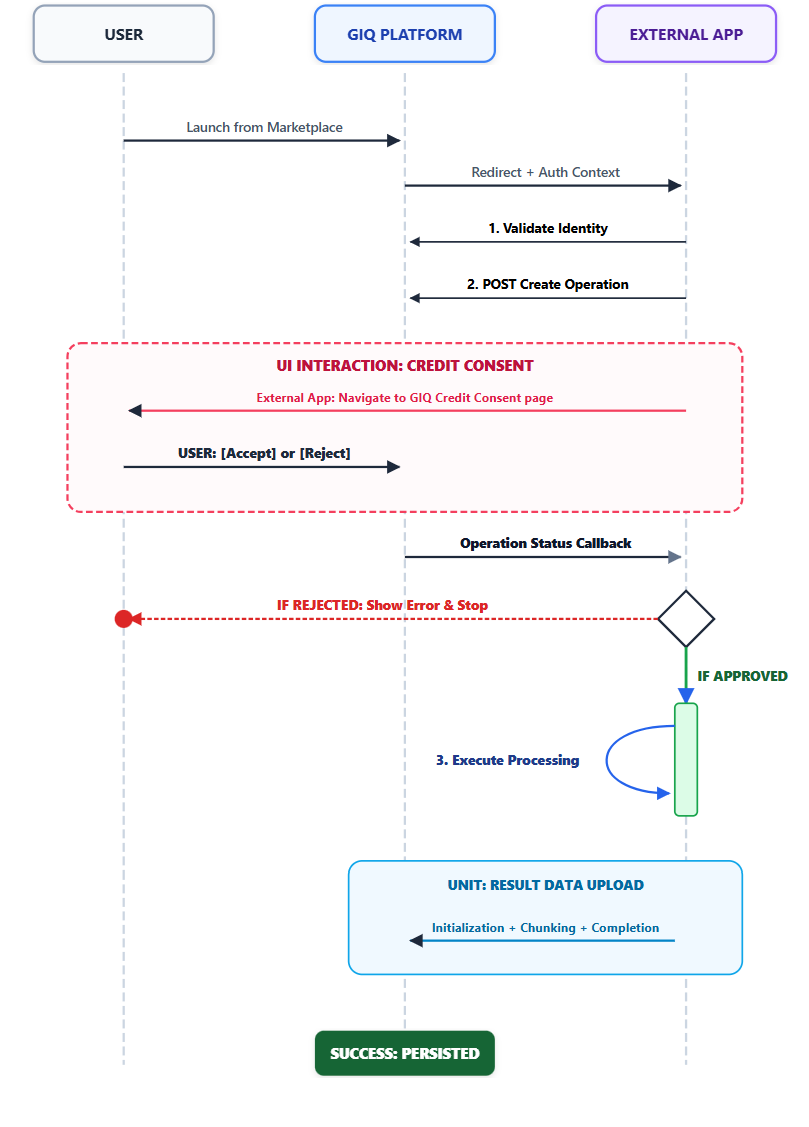
Refer to the following graphic to understand the workflow:
Base URL
All endpoints are relative to:
/public/external-app
Authentication
Before you start, do the following:
Contact gIQ Support at support@giq.ae to set up API integration. You will receive the required credentials, including your API key, which must be used in all API requests.
-
An API key (
X-API-KEY)
→ Get and manage API keys -
An identity token provided by gIQ during integration
→ Understand identity tokens and authentication flow -
Required permissions to access the External App APIs
→ Authentication and access control
Use the X-API-KEY header to authenticate API requests.
X-API-KEY: API_KEY
How the integration flow works
A typical integration follows this sequence:
- A user selects your app in the gIQ Marketplace
- gIQ sends an identity token to your application
- Your application gets the user details
- Your application creates an operation
- gIQ handles approval in the platform
- Your application checks the operation status
- If approved, your application runs the task
- Your application uploads the output file to gIQ
Who does what
The following model clarifies which parts of the workflow are handled by the gIQ platform and which are handled by your application:
-
The gIQ platform is responsible for:
- Generating the identity token
- Managing user approval
- Maintaining operation status
-
Your application is responsible for:
- Processing the task
- Checking operation status repeatedly
- Uploading the result
Operation Lifecycle
An operation can have the following states:
REQUESTED— Operation created and awaiting user approval or rejectionAPPROVED— User approved the operation; processing can beginREJECTED— User rejected the operation; do not proceedEXPIRED— Operation expired because no action was taken within the configured time window
Operation expiry behavior
If an operation remains in the REQUESTED state and no action is taken by the user, the operation automatically expires after 30 minutes.
Once expired:
- The operation status changes to
EXPIRED - The operation is no longer valid for processing
- Your application must not proceed with execution or upload results for that operation
Treat
EXPIREDas a final state. DO NOT continue the workflow.
Handling expired operations
If an operation reaches the EXPIRED state:
- Stop checking the Operation Status endpoint once the operation reaches a final state
- Do not start or continue processing
- Do not initiate or perform any upload
- Treat the operation as invalid for further use
If your workflow requires retry:
- Create a new operation
- Restart the workflow using the new operationId
API summary
| Step | Action | Endpoint |
|---|---|---|
| 1 | Renew identity token | POST /token/{token}/renew |
| 2 | Get user details | GET /user/{token}/detail |
| 3 | Create operation | POST /operation/{token} |
| 4 | Get operation status | GET /operation/{token} |
| 5 | Initiate multipart upload | POST /file/{token}/upload/initiate |
| 6 | Upload file chunks | POST /file/{token}/upload/chunk |
| 7 | Complete multipart upload | POST /file/{token}/upload/complete |
Checking operation status
Check the Operation Status endpoint repeatedly until the operation reaches a final state.
Recommended approach:
- Check the operation status every 2–5 seconds
- Stop when status is
APPROVED,REJECTED, orEXPIRED
Upload rules
- Use the same
uploadIdandkeyfor all chunks in the same upload - Upload chunks in order
- Complete the upload only after all chunks are uploaded
- Start the upload only after the operation is approved
Example Workflow
The following example shows how your application can implement the integration flow:
-
Receive the identity token from gIQ platform
-
Retrieve user details
→GET /user/{token}/detail -
Create an operation
→POST /operation/{token}
→ Store the returnedoperationId(used to track the operation status) -
Check operation status
→GET /operation/{token}?operationId={operationId}Repeat until the status is one of:
APPROVED→ proceedREJECTED→ stopEXPIRED→ stop
-
If status is
APPROVED:- Start processing the task
- Initiate upload
→POST /file/{token}/upload/initiate - Upload file chunks
→POST /file/{token}/upload/chunk - Complete upload
→POST /file/{token}/upload/complete
-
If status is
REJECTEDorEXPIRED:- Stop processing
- Do not upload any results
- Optionally create a new operation to retry
Common errors
| Status code | Meaning |
|---|---|
| 400 | A required value is missing, malformed, or invalid. |
| 403 | Authentication failed, permission is missing, or the token is revoked or expired. |
| 404 | The referenced token, operation, or upload session was not found. |
| 500 | The request failed because of a server-side issue. |
Implementation checklist
- Use the token provided for the current session
- Create an operation before starting processing
- Check operation status before uploading results
- Upload files using multipart upload (uploading the file in parts)
- Complete the upload only after all chunks are uploaded
Integration Guidelines
The following guidelines define how your application must behave during the External App Integration flow.
Do not start processing before approval
After your application creates an operation, gIQ handles the approval flow internally. Your application must wait until the Operation Status endpoint returns APPROVED before starting any processing.
If your application starts work while the operation is still REQUESTED, the user may not yet have granted approval. If the operation later becomes REJECTED, any work performed before approval is considered invalid for that request.
Expected behavior
- Create the operation
- Check the Operation Status endpoint repeatedly until it reaches a final state
- Start processing only when the status is
APPROVED
Do not upload files for rejected operations
A rejected operation means the requested action was not approved. If the Operation Status endpoint returns REJECTED, your application must stop the workflow and must not upload any output file for that operation.
Uploading files for a rejected operation can create inconsistent system behavior, because gIQ has already determined that the requested action should not proceed.
Expected behavior
- Stop processing when the status is
REJECTED - Do not call the upload initiation endpoint
- Do not upload chunks
- Do not call the complete upload endpoint
Do not reuse tokens across sessions
It is recommended that you treat each token as a temporary value that represents a specific external app session. DO NOT store tokens for reuse across different users, different sessions, or later workflows.
If you reuse a token across sessions, you may face the following issues if the token has expired, been revoked, or no longer matches the current operation:
- Authorization issues
- Incorrect user context
- Failed requests