Vector Layer
Vector layers consist of three basic GIS features – lines, points, and polygons. These features represent real-world features in the digital format.
Here’s how you can use these features to represent real-world features:
| Feature | Real-World Locations |
|---|---|
| Points | Cities, towns, buildings, events, and so on… |
| Lines | Roads, canals, railways, and so on. |
| Polygons | Boundaries of a city, state, or country. |
Polygon Tool
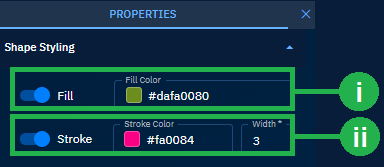
You can edit the styling of a polygon by simply selecting it and changing the fill and stroke color. In addition, you can also change the width of the stroke.
Prerequisites: In the following procedure steps, it is assumed that you have accessed a workspace page, selected a new or existing drawing layer, and now you are ready to edit the feature.
To edit a polygon feature, do the following:
-
Open a Workspace, click the Edit icon on the Analyst Tools, and then click the Select tool.
-
Click the polygon that you want to edit.
The Properties panel is displayed.
-
In the Properties panel, do the following:
i. Edit the Fill Colour field to select a new colour of the point or copy-paste a hexadecimal (HEX) color.
ii. Edit the Stroke Color field to select a colour of the point or copy-paste a hexadecimal (HEX) color and then proceed to increase or decrease the width of the stroke (boundary) in the Width field.
-
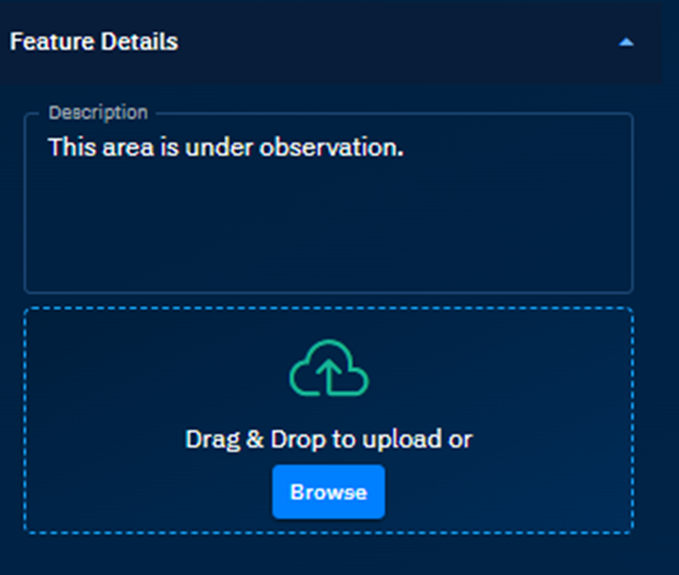
Change the description of the point in the Description field.
-
Click the Browse button to upload a new graphic or photo to add a visual description of the point.
Line Tool
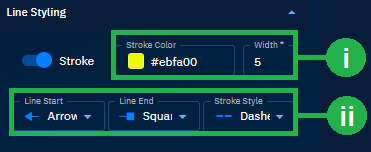
You can edit the styling of a line by simply selecting it and changing the stroke color and the width. In addition, you can also change the line start, line end, and stroke style.
Prerequisites: In the following procedure steps, it is assumed that you have accessed a workspace page, selected a new or existing drawing layer or vector layer, and now you are ready to draw or insert a feature.
To edit a line, do the following:
-
Open a Workspace, click the Edit icon on the Analyst Tools, and then click the Select tool.
-
Click the line that you want to edit.
The Properties panel is displayed.
-
In the Properties panel, do the following:
i. Click the Stroke Color field to select a colour of the point or copy-paste a hexadecimal (HEX) color and then proceed to increase or decrease the width of the stroke (boundary) in the Width field.
ii. Select an appropriate start and end line terminators from the Line Start and Line End drop-down list. Then proceed to select a stroke style from the Stroke Style drop-down list.
Point Tool
In the drawing layer, you can draw or insert two types of point: point and symbol.
Point
A point is a geolocation that you can draw or insert on the map.
Prerequisites: In the following procedure steps, it is assumed that you have accessed a workspace page, selected a new or existing drawing layer or vector layer, and now you are ready to draw or insert a feature.
To edit a point, do the following:
-
Open a Workspace, click the Edit icon on the Analyst Tools, and then click the Select tool.
-
Locate the point and then click and drag a point to change its location.
-
In the Properties panel, do the following:
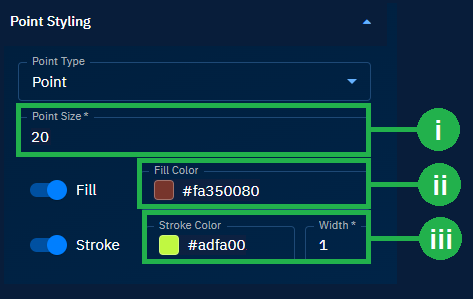
i. Type a number to increase or decrease the size of the point in the Point Size field.
ii. Click the Fill Colour field to select a colour of the point or copy-paste a hexadecimal (HEX) color.
iii.Click the Stroke Color field to select a colour of the point or copy-paste a hexadecimal (HEX) color and then proceed to increase or decrease the width of the stroke (boundary) in the Width field.
-
Change the description of the point in the Description field.
-
Click the Browse button to upload a new graphic or photo to add a visual description of the point.